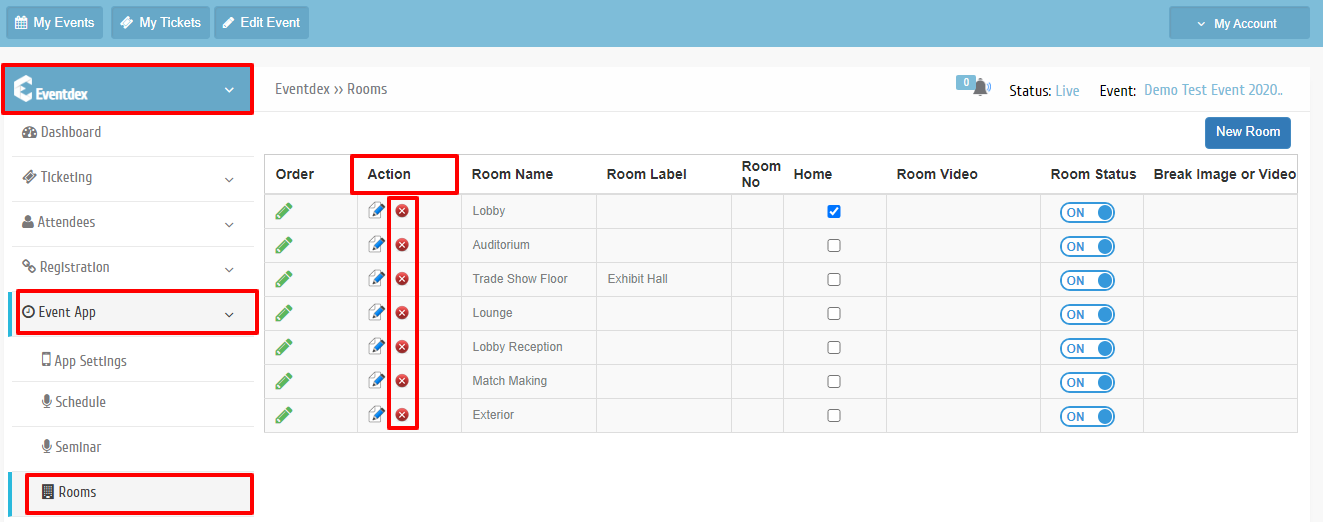
How to add, edit, remove rooms?
By support
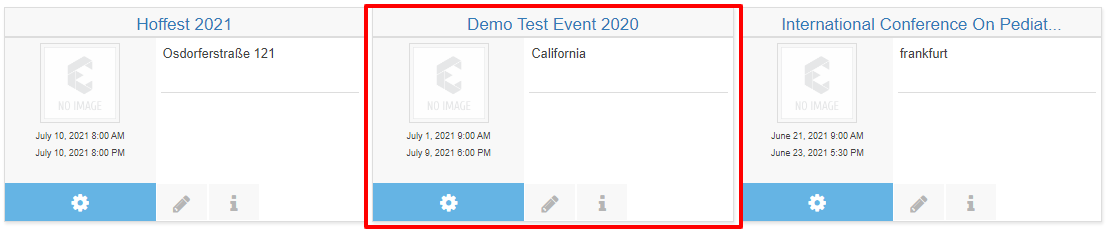
Step 1 Go to Eventdex Portal >> Login with your credentials >> Select your Event
- Add rooms
- Edit rooms
- Remove rooms
Add rooms
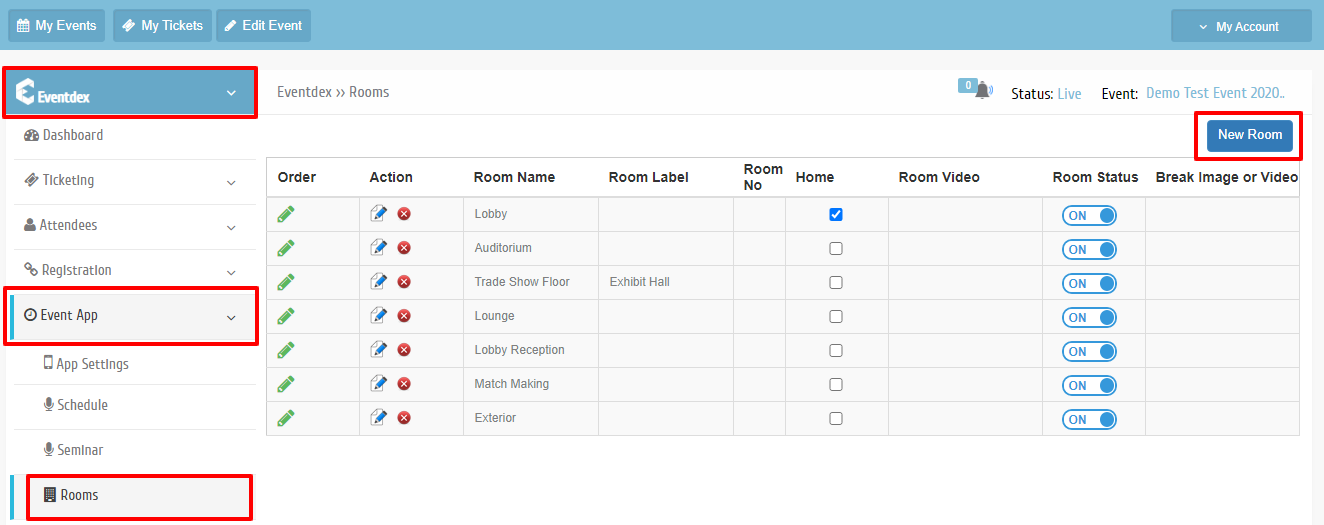
Step 2 Path: Eventdex >> Event App Accordion >> Rooms tab >> Click on New Room button.
Step 3 A popup Appears like the below picture. You have to enter all the required data click on Save.
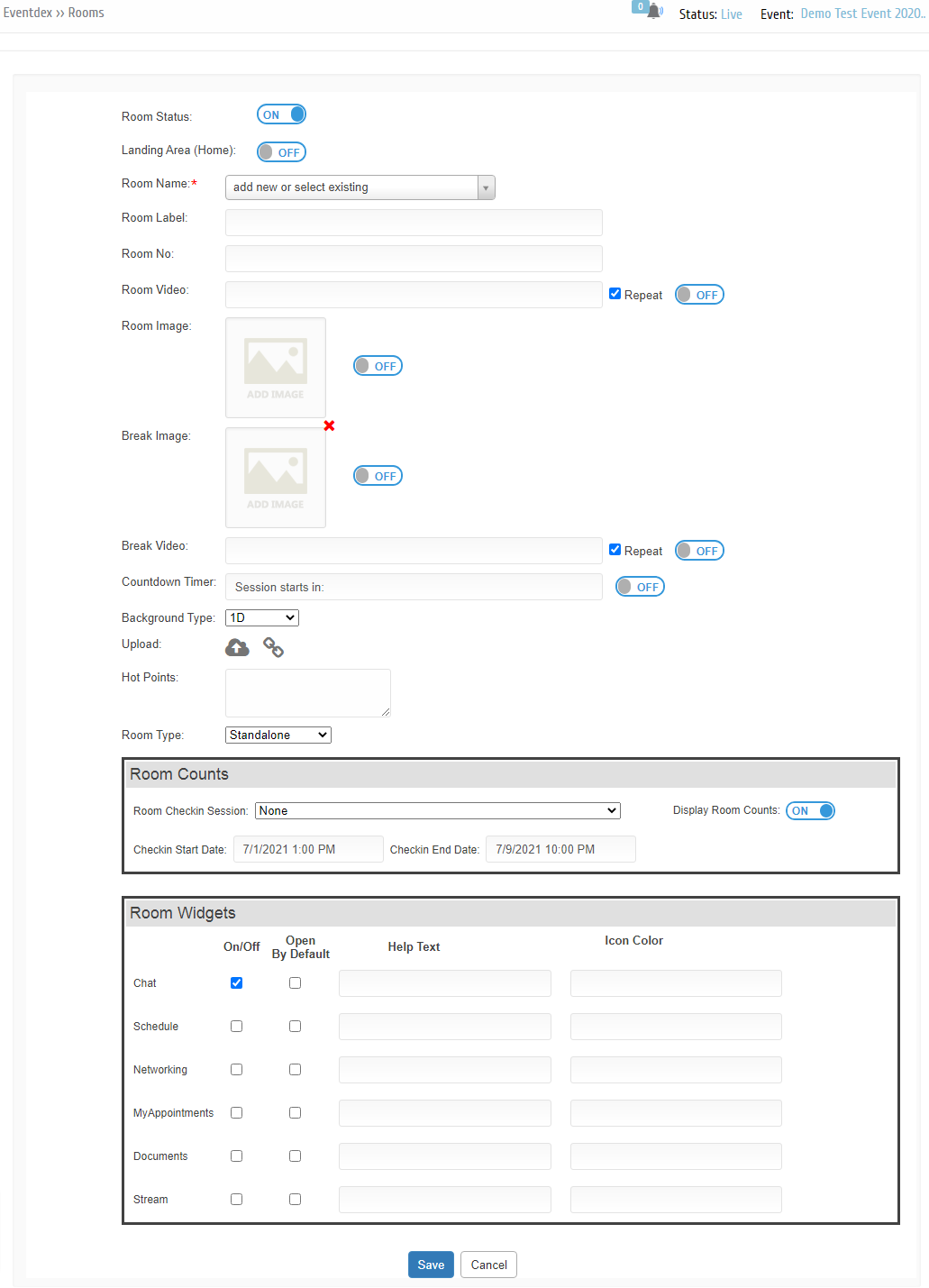
Room Status:
Landing Area (Home):
Room Name:*
Room Label:
Room No:
Room Video:
Room Image:
Break Image:
Break Video:
Countdown Timer:
Background Type:
Upload:
Hot Points:
Room Type:
Room Counts: Room Check-in Session: Display Room Counts: Check-in Start Date:
Check-in End Date:
Room Widgets: Chat: Schedule: Networking: My Appointments: Documents:
Stream:
Edit rooms
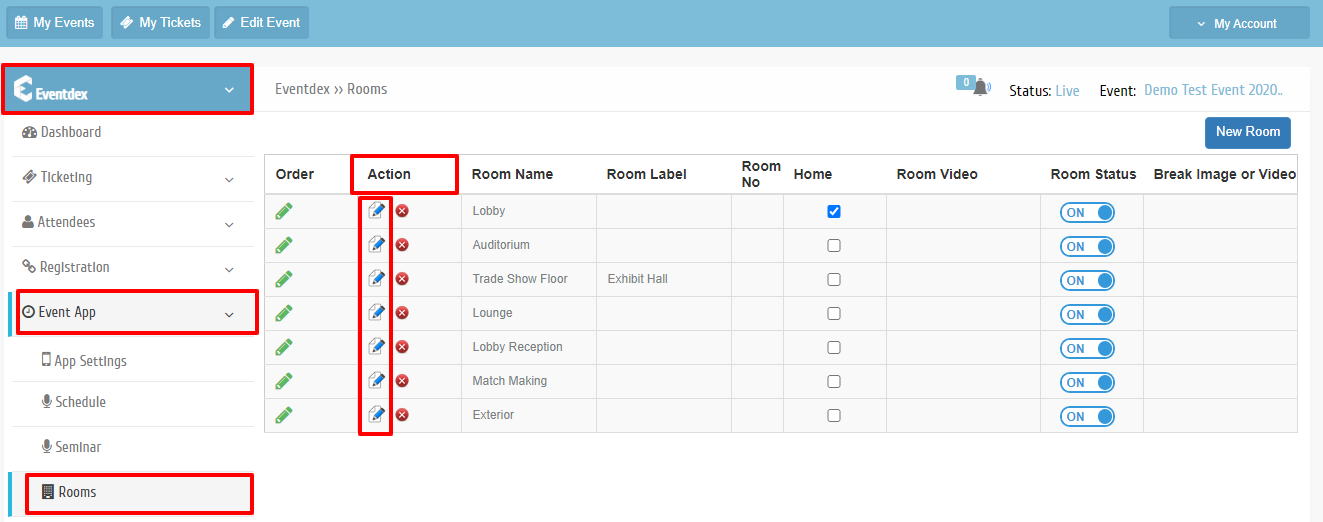
Step 1 Path: Eventdex >> Event App Accordion >> Rooms tab >> click on Edit icon under Action.
Remove rooms
Step 1 Path: Eventdex >> Event App Accordion >> Rooms tab >> click on Remove icon under Action.