
How to add a Basic Promo Code?
By support
Add a Basic Promo Code
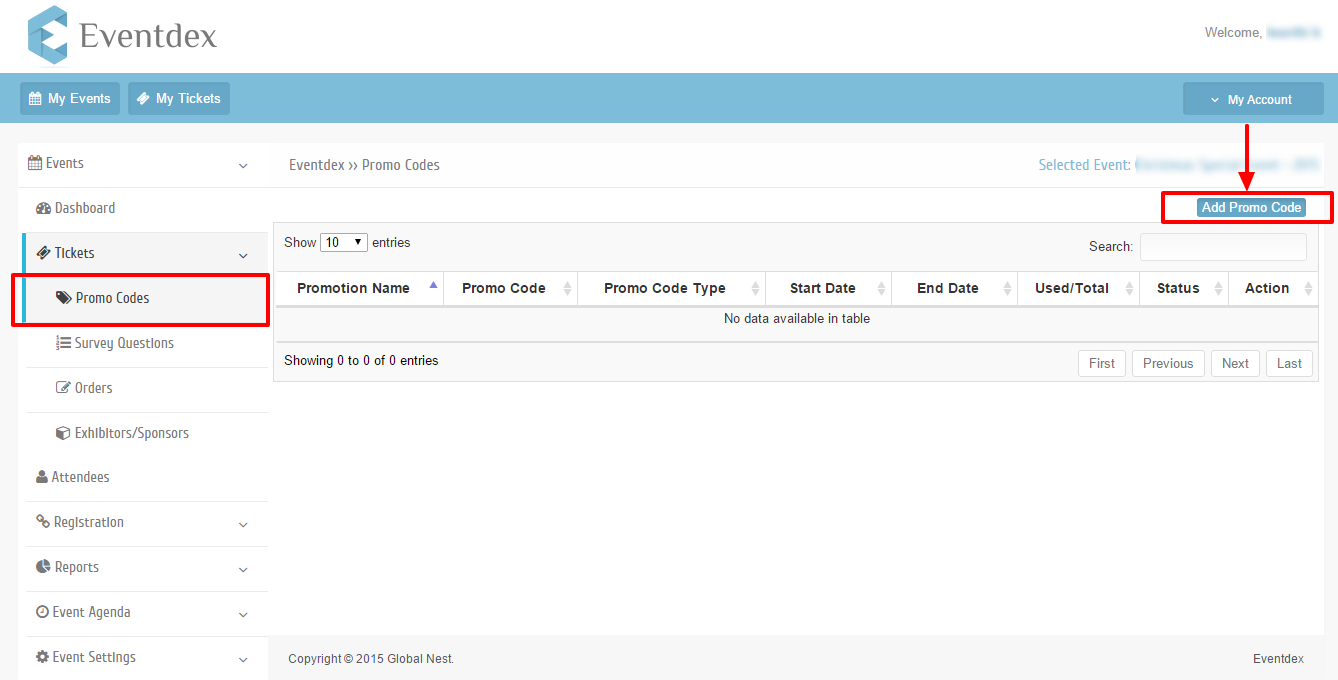
Login to Eventdex Portal >> Tickets >> Promo Codes
Step 1:Click on Add Promo Code button at the top right of the Page.
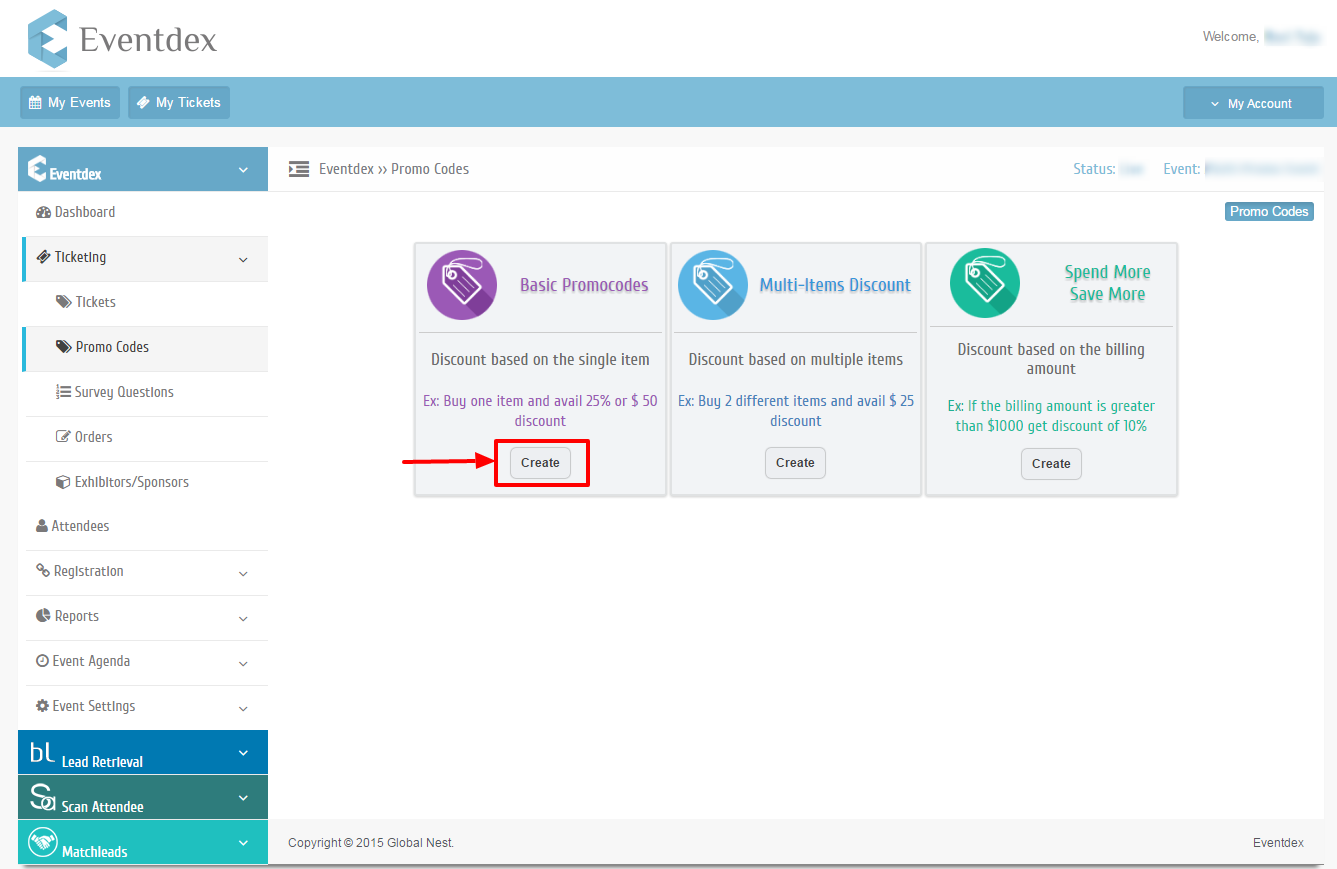
Step 2: Click on Create Button to create Basic Promo Code.
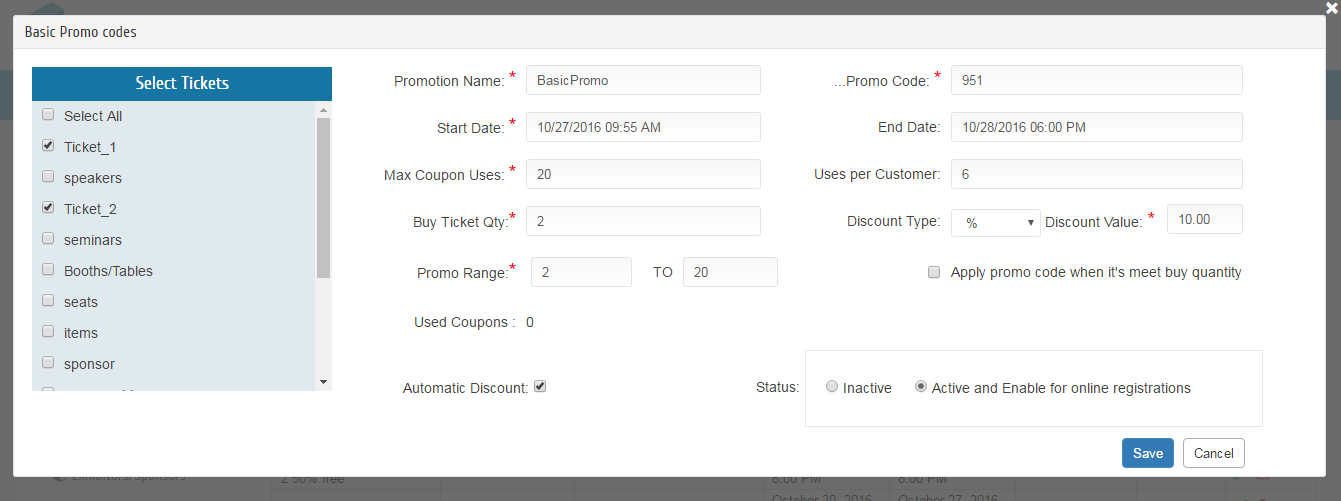
Step 3: Enter all required fields on the current screen. Once that is complete, navigate to the left panel and select the tickets to which the promo code should be applied.
Step 4: Basic Promo Code to know more about the fields.
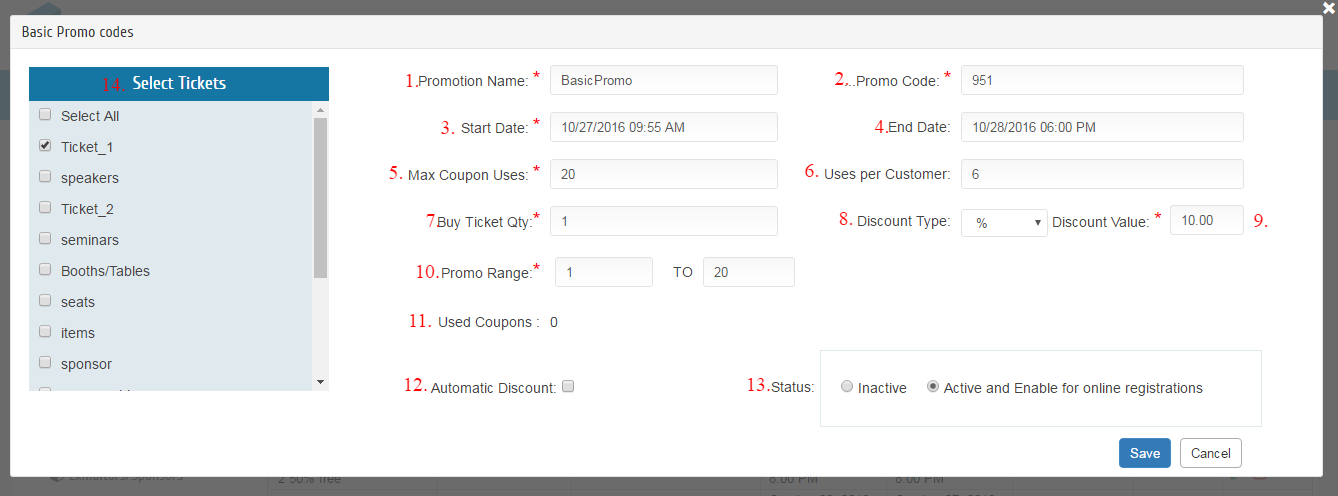
- *Promotion Name:Give promotion Name.
- *Promo Code :Promo Code is used to avail discount on purchase of Tickets or Items.
- *Start Date :Start Date of promo Code.
- End Date :End Date of Promo Code. After end date promo code will expire.
- *Max Coupon Uses :Total No. of coupons.
- Uses per Customer : Maximum Number of Coupons uses per Customer(i.e Unique Email Id).
- *Buy Ticket Qty : Avail discount on purchase on min qty of tickets.
If the “ Buy Ticket Qty ” is greater than one “ Apply promo code when it’s meet buy quantity ” is displayed on the screen.
If “ Apply promo code when it’s meet buy quantity ” is Unchecked the promo will apply to each and every selected quantity of tickets.
If “ Apply promo code when it’s meet buy quantity ” is checked the promo will apply to multiples of
“ Buy Ticket Qty”.
- Discount Type :Select discount type ($ or %).
- *Discount Value :Enter discount value.
- *Promo Range: The Promo will applies between the Promo Range.
EX: Promo Range 1-5, it will get 10% OFF.
Promo Range 5-10, it will get 20% OFF.
11. Used Coupons: This will gives the number of used coupons of the particular Promo.
12. Automatic Discount: The Promo will applies automatically if the check box is enables (with out entering the Promo Code).
13. Status : Active and Enable for online registrations(Radio Buttons).
Inactive(The Promo will not apply in the Registration page if the status is in Inactive).
14. Select Tickets : Enable Tickets from the left panel to which promo code should be applied.
Note: Field with ‘*‘ is a required field.
Assign Tickets to promo code by selecting tickets from the left panel.
Step 5: Click on ‘Save’ button to save new Basic Promo Code.
Click on ‘Cancel’ button to exit Promo Code screen without saving.