
How to Create and Add multiple sessions to Scan Attendee user?
By Krishna Vaaka
Follow the below steps to Create and add sessions to scan the attendees.
How to create new sessions?
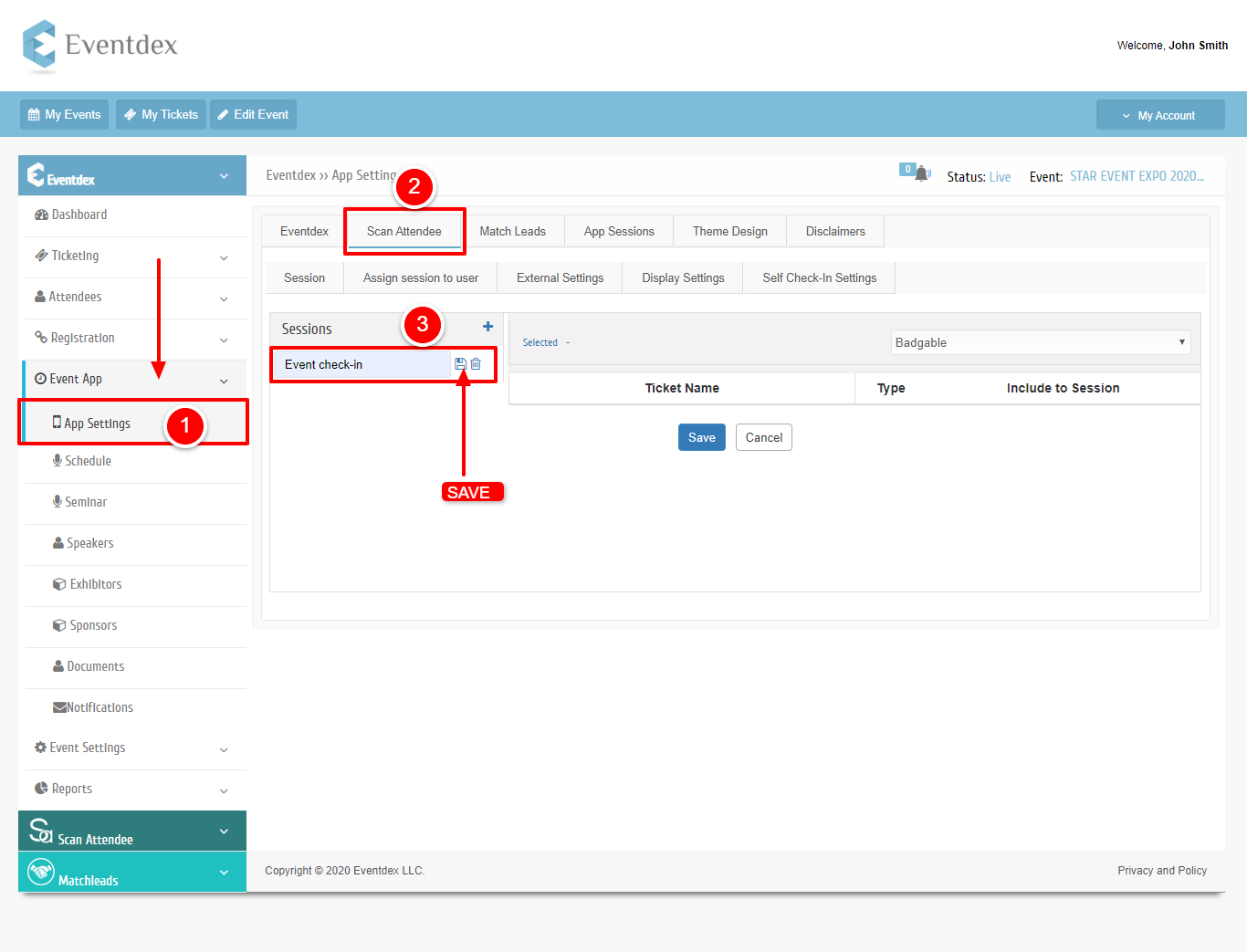
Step 1: Go to App Settings under the Event App.
Step 2:Select the Scan Attendee tab.
Step 3: Enter the session name and click on the Save button.
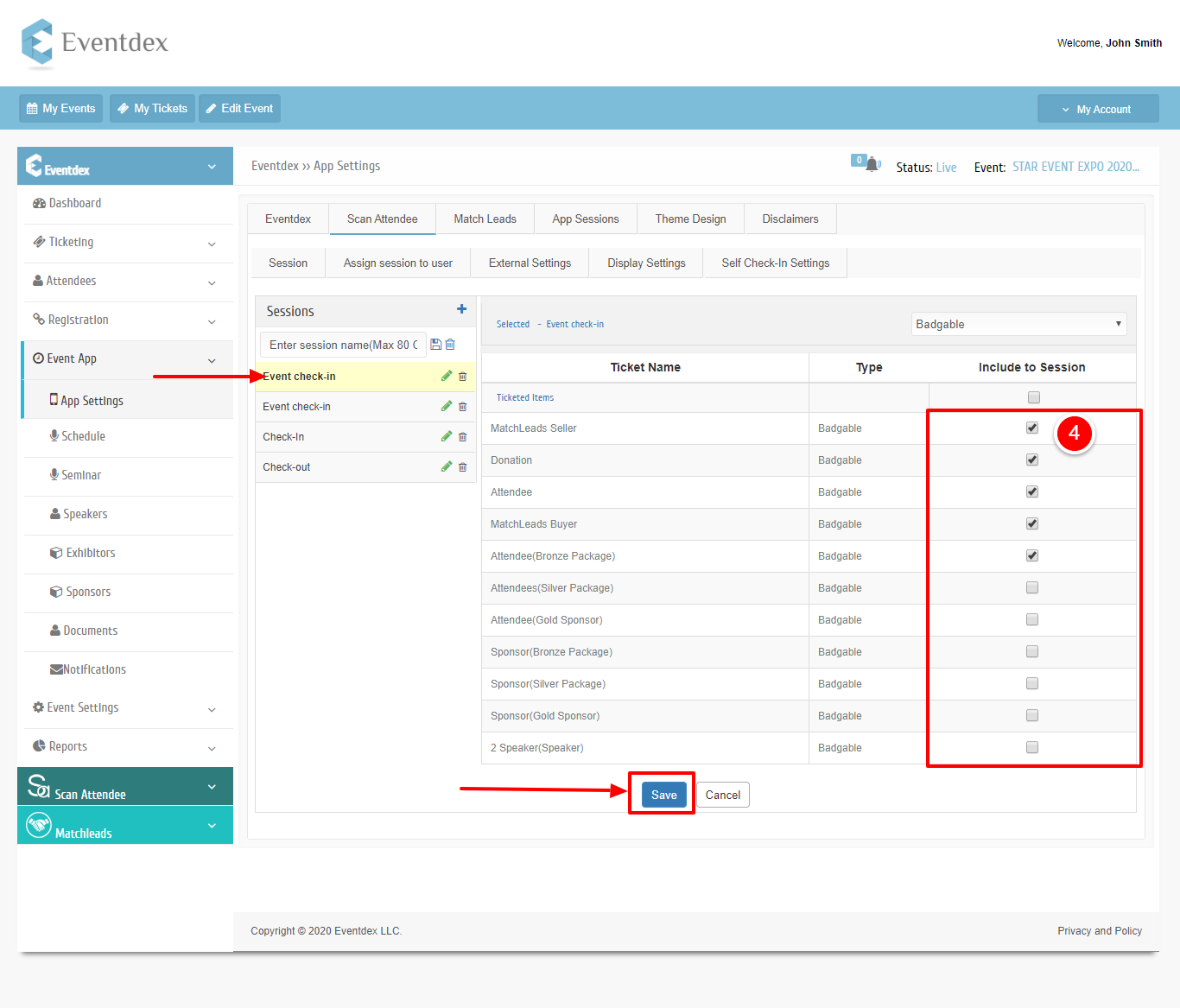
Step 4: Choose the session and select the tickets that you would like to scan and click on save.
How to Assign Sessions to Scan Attendee App users?
Step 1: Click on the “Assign Session to User” tab.
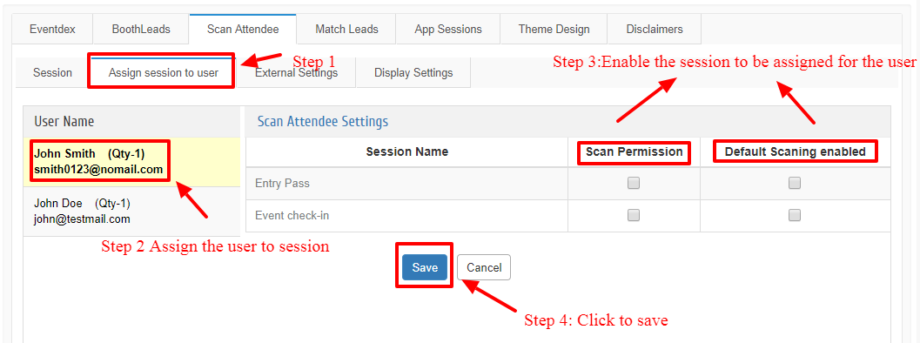
Step 2: Now the Scan Attendee App user is able to scan all badges whose tickets are enabled in the “Sessions” section.