
How to add Push Notifications
By support
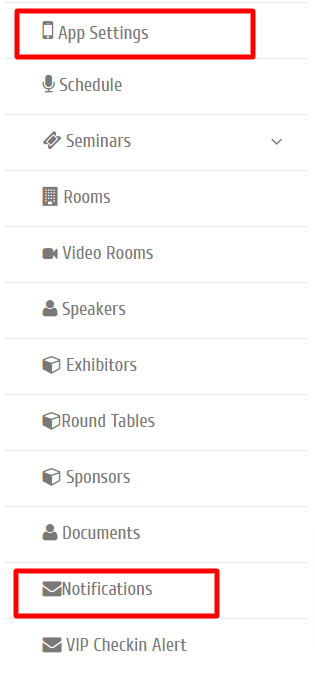
Step 1: Event Admin can create Push Notifications to notify about event updates to attendees by clicking on the given tabs in sequence. Eventdex >>Event App >> Notifications
Step 2: “Notifications” screen appears.
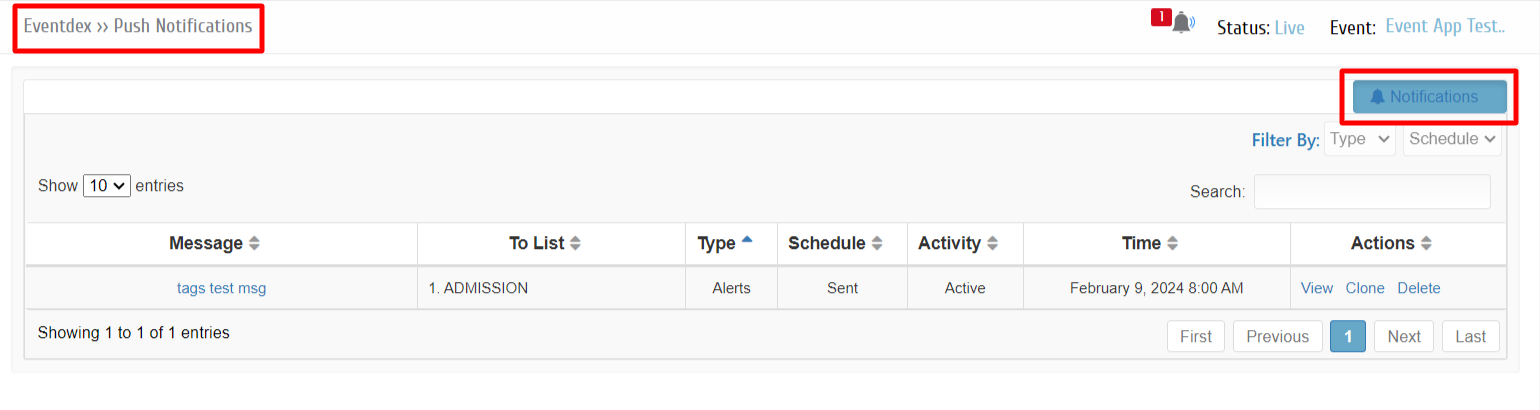
Step 3:To add a new notification or message to the attendees click on the “Notification” button at top right of the section.
Step 4: “Push Message ” screen appears like below.
Notification:
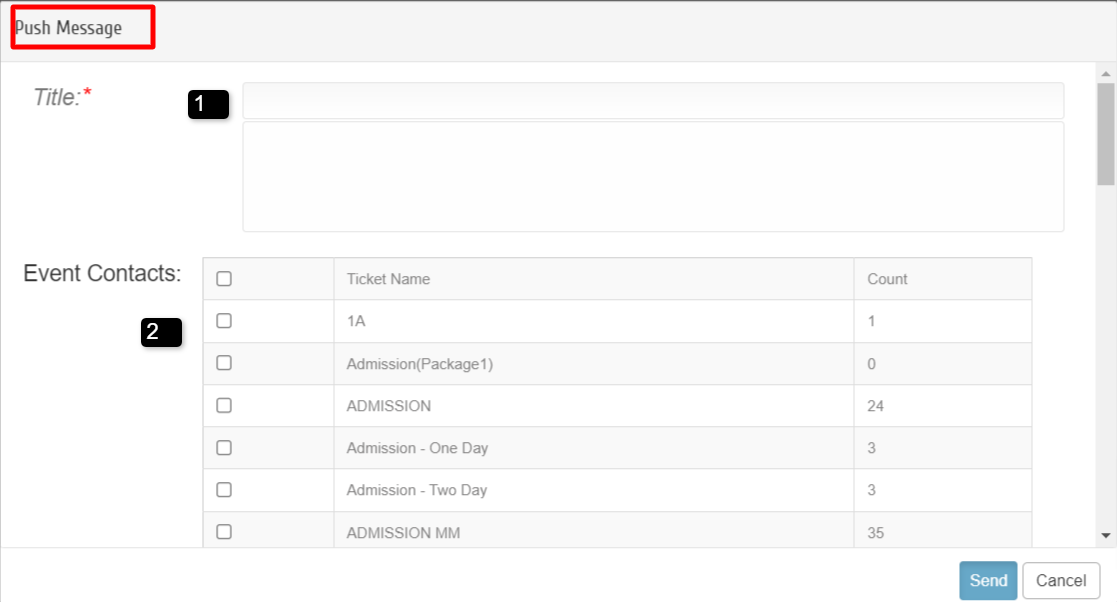
1. Title: Enter the title of the notification and its details in the given section.
2. Event Contacts: Select the ticket types to whom the notification has to send or select the tags to send notification for attendees who has the tags (if any).
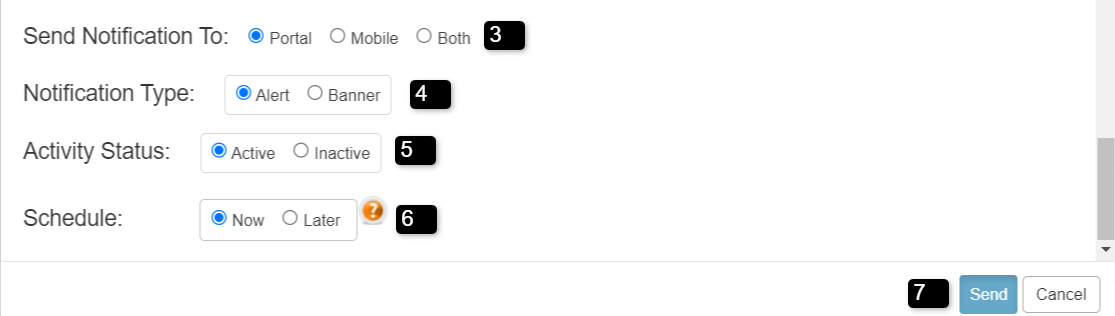
3. Send Notifications To: Enable Portal for sending notifications to Virtual Platform or Mobile for Mobile notifications, or select Both for Virtual Platform and Mobile.
4. Notification Type: Enable Alert for the notification to stay 30 seconds on the Virtual Platform screen or Banner is for the notification until user close the notification.
5. Activity Status: Enable “Active” or “Inactive” mode for the given notification.
6. Schedule: Schedule the notification by enabling “Now” or “Later” to send the notification. For “Later” enter scheduled Date & Time.
7. Click on “Send” to push the notification. Or click on “Cancel” tab to exit the screen.